Users
The Users page is where you control who on your team can access your Allegro organization and what they're allowed to do. Use it to invite new team members, assign roles, and remove people who no longer need access.
Users are your internal team — the people who log in to the Allegro admin and manage content. They are distinct from Audience members, who are the end-users your organization sends interactions to. This page covers team members only.
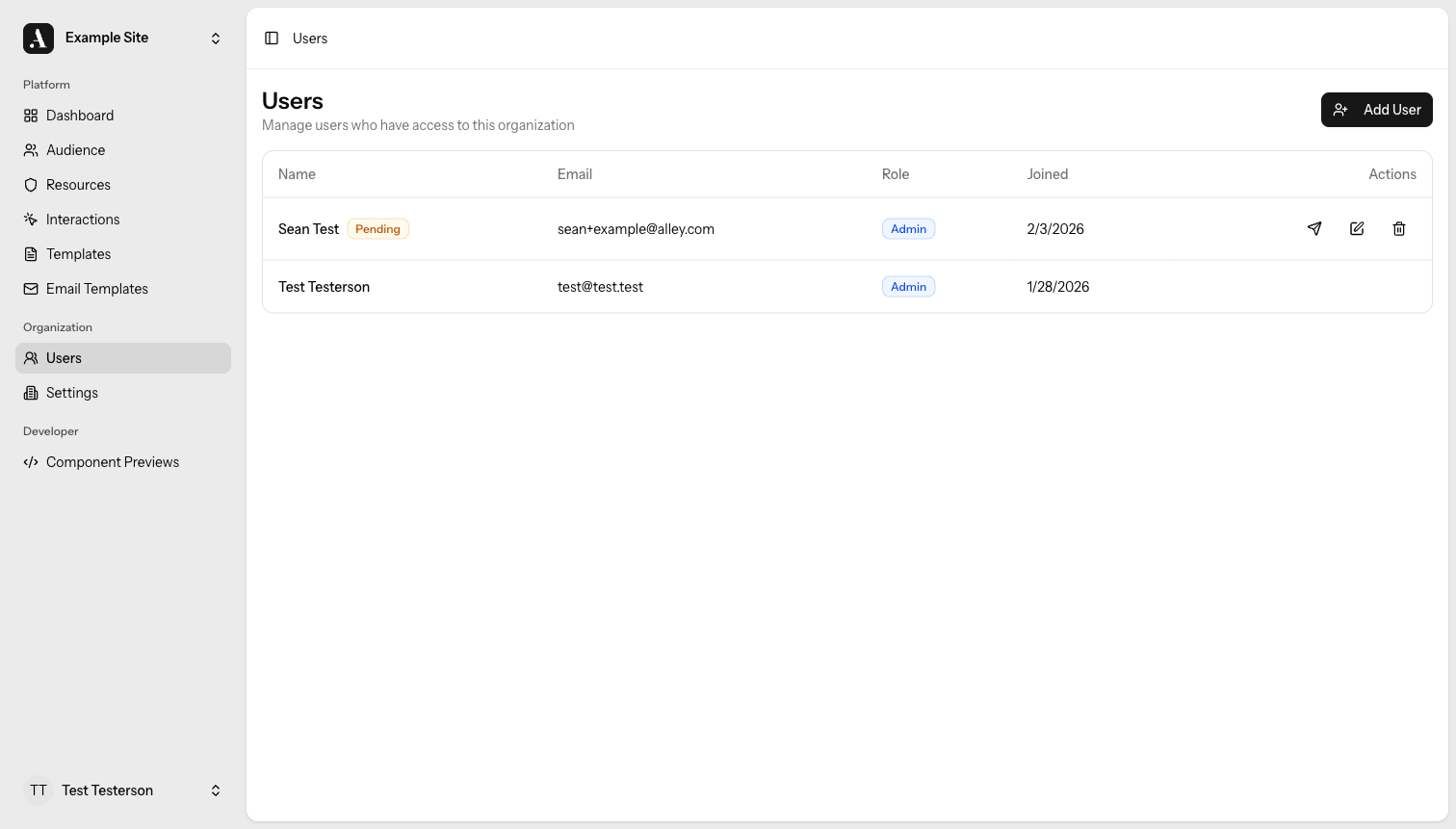
Viewing Users
Go to Users in the main navigation to see everyone in your organization. The list shows each person's name, email, role, and the date they joined. It is sorted newest-first and paginates at 25 per page.
Roles
Every user has one of three roles:
- Viewer — Read-only access. Great for stakeholders who need visibility but won't edit content.
- Member — Can create, edit, and manage content. Assign this to anyone who actively builds interactions and templates.
- Admin — Full access, including user management and organization settings. Reserve this for people who need to manage the organization itself.
For a full breakdown of what each role can do, see Permissions.
Assign the most restrictive role that still lets each person do their job. Start with Viewer and escalate only when needed.
Adding a User
Only Admins can add users.
- Go to Users and click Add User.
- Fill in the person's name, email, and choose a role.
What happens next depends on whether that email already has an Allegro account:
- New to Allegro — Allegro creates an account and sends a welcome email with a link to set their password. The subject line reads: Welcome to [your organization name].
- Already has an account — Allegro adds them to your organization and sends a notification. The subject line reads: You've been added to [your organization name].
You cannot add someone who is already a member of your organization.
The invitation email includes a password-reset link so new users can set their own password. No one needs to share a temporary one.
Changing a User's Role
Only Admins can change roles, and you cannot change your own.
- Go to Users.
- Find the user whose role you want to change.
- Select the new role from the role selector next to their name.
The change takes effect immediately.
Removing a User
Only Admins can remove users, and you cannot remove yourself.
- Go to Users.
- Find the user you want to remove.
- Click the remove action next to their name and confirm.
Removing a user revokes their access to your organization. It does not delete their Allegro account — if they belong to other organizations, those memberships are unaffected.
Related
- Permissions — Full role-by-role permission breakdown