Interactions
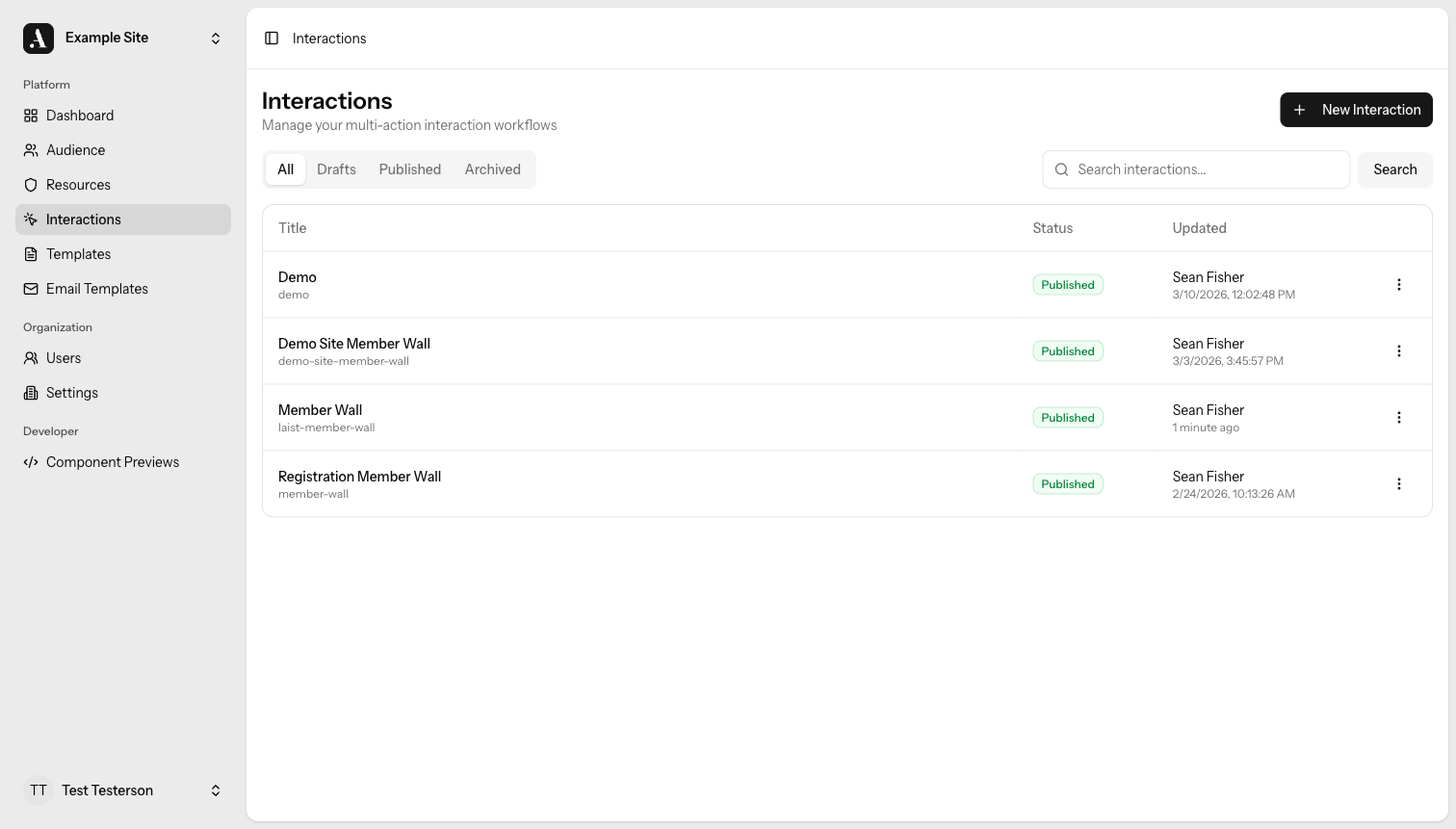
Interactions are how you deploy experiences to your site. Each Interaction bundles one or more actions — template injections, JavaScript, cookies, and CSS — into a single unit you can trigger by its slug. When triggered, every action fires in the order you defined.
How Interactions Relate to Templates
Templates are reusable content blocks. An Interaction uses a Template by referencing it in a Template action and filling in its field values. The same Template can appear in many Interactions, each with different field values and placement settings.
Template  ──used by──►  Interaction Action  ──belongs to──►  Interaction
(content block)          (where & how to inject)              (the deployable unit)
You must publish a Template before you can select it in an Interaction action.
Lifecycle
| Status | Meaning |
|---|---|
| Draft | Work in progress — the Interaction exists but cannot be triggered on your site |
| Published | Live — triggering the slug on your site executes all actions |
| Archived | Soft-deleted — removed from normal listings, can be restored or permanently deleted |
New Interactions start as Draft. Publish when you are ready to go live. You can unpublish a live Interaction at any time to return it to Draft.
Archiving an Interaction does not affect the Templates it references. Those Templates remain intact.
Creating an Interaction
- Go to Interactions → New Interaction.
- Enter a title. The slug is auto-generated from the title when you first save and never changes automatically after that.
- Add one or more actions with the Add Action menu.
- Click Save as Draft to save without publishing, or Publish to go live immediately.
Actions
Actions are the individual steps an Interaction runs when triggered. They execute in order, top to bottom. Each action can have its own delay so it fires at a different moment.
Use the arrow buttons on each action card to reorder them and the trash icon to remove one.
Template Action
Injects a published Template into the page.
| Setting | Description |
|---|---|
| Template | The published Template to inject. Click Select Template to browse and choose one. |
| Template Fields | If the selected Template defines fields, you fill in their values here. Each field shows its slug and optional description. |
| Target Selector | A CSS selector that identifies the element to inject into (e.g. #article-body, .entry-content). Leave empty to append to the end of the page body. |
| Placement Method | Controls how the template is inserted relative to the target element (see table below). Disabled until you enter a target selector. |
Placement Methods
| Method | Behavior |
|---|---|
| Replace | Replaces the target element's content entirely |
| Append | Adds the template to the end of the target element |
| Prepend | Adds the template to the beginning of the target element |
| Before | Inserts the template immediately before the target element |
| After | Inserts the template immediately after the target element |
| Truncate | Injects the template after a set number of paragraphs or words within the target element |
Truncation Settings
When you choose the Truncate placement method, three additional settings appear:
| Setting | Description |
|---|---|
| Truncation Unit | Whether to count Paragraphs or Words |
| Show First N | How many paragraphs or words to display before injecting the template |
| Truncation Style | Cut removes the remaining content; Blur overlays the template on top of the remaining content |
Use Truncate + Blur to create a content-paywall effect: show the first few paragraphs, then overlay a subscription prompt.
JavaScript Action
Runs custom JavaScript when the Interaction fires.
Write any valid JavaScript in the code editor. The code runs in the context of the page when the action executes. Use this for analytics events, third-party integrations, or custom behavior that doesn't fit a Template.
JavaScript actions run in your visitors' browsers. Only use trusted code here.
Cookie Action
Writes a browser cookie when the Interaction fires.
| Setting | Description |
|---|---|
| Cookie Name | The name of the cookie (e.g. promo_seen) |
| Cookie Value | The value to store (e.g. 1) |
| Path | The URL path the cookie applies to. Defaults to / (the entire site). |
| Domain | Optional. Restrict the cookie to a specific domain (e.g. .example.com). Leave empty to use the current domain. |
| Expires (Days) | How many days until the cookie expires. Minimum 1, maximum 365. Defaults to 30. |
A common pattern is to pair a cookie action with a Template action so you can suppress the Interaction on future visits by checking for the cookie before triggering.
CSS Action
Injects CSS rules into the page when the Interaction fires.
Write standard CSS in the code editor. The styles apply globally to the page when the action executes. Because templates are placed in a shadow root, their CSS will only apply to the template itself. Use this to hide elements, adjust layout, or apply theme overrides without modifying the page source.
Action Delays
Every action supports an optional delay. The delay controls when that action executes relative to when the Interaction is triggered.
| Delay Type | Behavior |
|---|---|
| No delay | Executes immediately when the Interaction fires |
| Time delay | Waits a set number of seconds before executing |
| Scroll position | Waits until the user has scrolled to a position on the page |
Scroll Delay Options
| Setting | Description |
|---|---|
| CSS Selector | Optional. Delays until the specified element enters the viewport. Leave empty to use a raw scroll position instead. |
| Scroll Position / Offset | A numeric value representing how far the user must scroll. When a CSS selector is set, this is an additional offset past the element becoming visible. |
| Unit | px (pixels) or % (percent of page height) |
Publishing and Unpublishing
To publish a draft Interaction, click Publish on the edit page.
To unpublish a live Interaction, click Unpublish on the edit page or use the actions menu in the Interactions list. Unpublishing returns the Interaction to Draft status — it stops firing on your site.
When you save a published Interaction, you are prompted to enter an optional revision note before the save completes.
Activation Snippet
After publishing, click Show Snippet on the edit page to see the JavaScript code that triggers this Interaction on your site. Copy it and place it wherever you want the Interaction to fire — for example, inside a post template or a tag manager rule.
window.allegro = window.allegro || [];
window.allegro.push(() =>
    window.allegro.interaction.trigger('your-interaction-slug'),
);
Replace your-interaction-slug with the slug shown in the dialog.
Archiving and Deletion
To archive an Interaction, open the actions menu in the Interactions list and choose Archive, or open the Interaction and choose Archive there.
Archived Interactions:
- Do not appear in the default list view
- Can be restored to Draft status
- Can be permanently deleted by Admins only
To view archived Interactions, switch to the Archived filter on the Interactions list. To restore one, open its actions menu and choose Restore.
Permanently deleting an Interaction removes it and all its revision history. This cannot be undone.
Revision History
Every time you save an Interaction, a revision is recorded automatically. You can view the full history, inspect what changed in any past revision, and roll back to a previous state.
Click Show Revisions on the edit page to open the revision history panel. See Revisions for full details.
Authorization
For details on who can manage interactions, see Permissions.