Audience
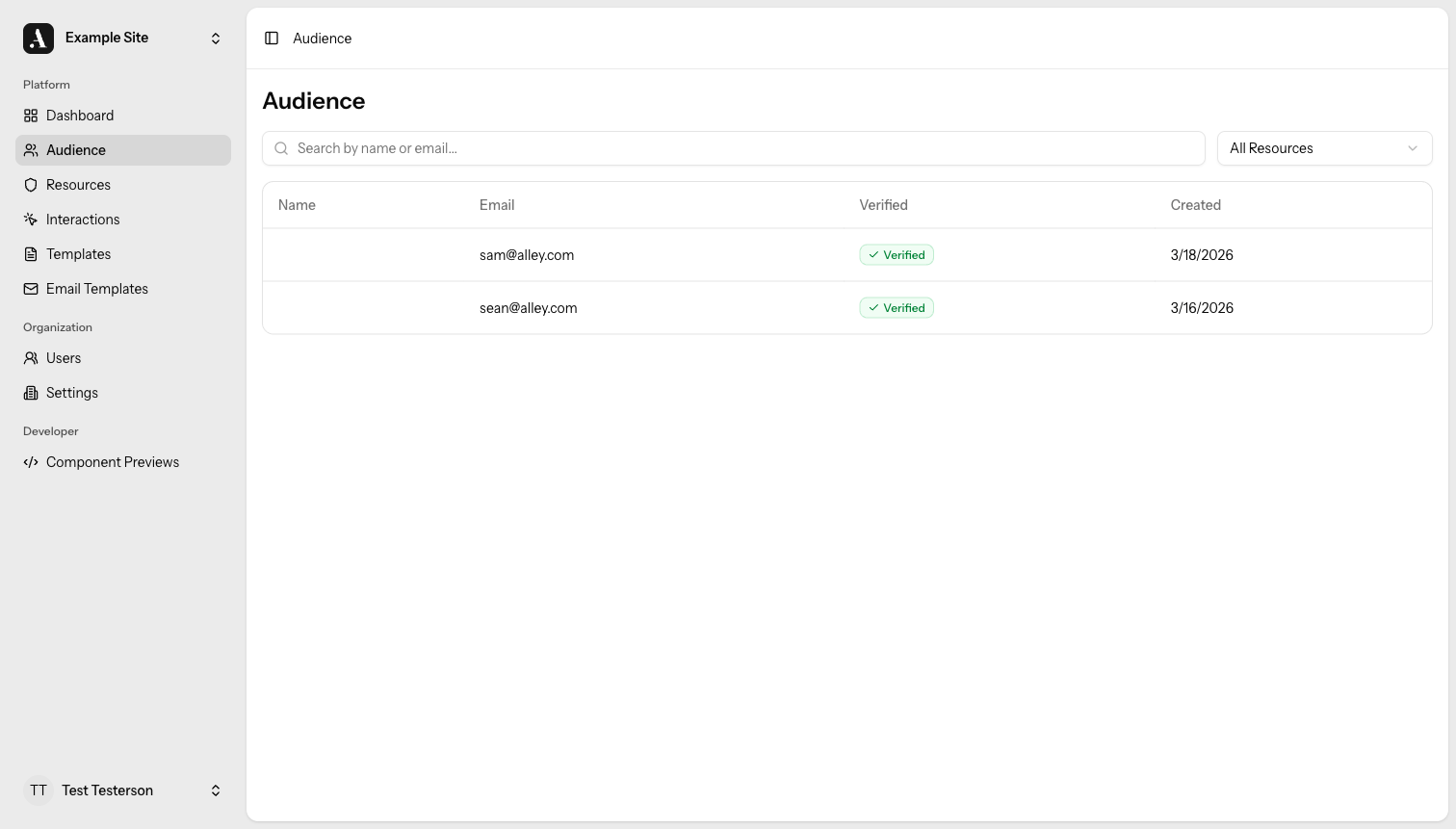
The Audience is your contact database. Every person who interacts with your site through Allegro is recorded here as a member. Use the Audience section to browse, search, and manage everyone who has signed up, logged in, or been identified on your site.
How members are created
You don't add members manually. Allegro creates a member record automatically when someone:
- Signs up through a registration form or reg wall on your site.
- Logs in with a magic link or social login (Google, Apple, etc.).
- Is identified by your backend using an external user ID.
If someone signs up or logs in with an email that already belongs to an existing member, Allegro links the activity to that member instead of creating a duplicate.
Browsing members
The Audience index lists every member in your organization, sorted by most recently added. Each row shows the member's avatar, display name, email address, and verification status.
Filtering by verification status
Use the filter at the top of the list to narrow results by email verification status: All, Verified, or Unverified.
Filtering by Resources
Use the filter at the top right of the table to narrow audience members by those who have active entitlements to a specific Resource.
Viewing a member profile
Click any row to open that member's profile. You'll see:
- Avatar — auto-generated from their email via Gravatar.
- Display name — the member's name, or their email if no name has been set.
- Email — their email address.
- Email verified — whether they have completed email verification.
- Last seen — how long ago they last generated an event (e.g. "3 days ago"), or "Never" if no events exist yet.
Activity history
Below the profile details you'll find the member's full activity history, listed newest first. Events load as you scroll.
Each entry shows what the member did (e.g. "signed up", "viewed page"), the relevant subject where applicable (e.g. a page URL), and how long ago it happened.
Events are tracked automatically by the Allegro SDK and your site's instrumentation. You don't manage event types from the admin UI — they are recorded as members interact with your site.
Editing a member
On a member's profile page you can toggle their email verification status. Flip the verified flag and save.
Name and email updates are handled through on-site interactions or the Allegro API, not the admin edit form.
Deleting a member
To permanently remove a member, open their profile and choose the delete action. You'll be asked to confirm before anything is removed.
Deleting a member is permanent. Their profile, activity history, and all associated data are removed and cannot be recovered.
Related
- Authentication — How members authenticate with magic links and OAuth
- Event Tracking guide — How events are sent from your site to Allegro