Segments
A segment is a saved group of known members. Use segments to size an audience, export it, or target it from an interaction, a cohort, or a meter.
Segments come in two types, chosen when you create one:
- Rule-based — membership is defined by rules over each member's profile: how much they read, how often they visit, what they have purchased, which products they hold, the user attributes saved on them, and so on. Allegro keeps the membership up to date as profiles change, so the segment always describes who matches its rules now, not who matched when you built it.
- Programmatic — membership is managed explicitly. You add and remove members yourself — from the dashboard, the API, an AI assistant over MCP, or a Segment action in an interaction — and a member can be set to leave automatically after a while.
A segment's type is set when you create it and can't be changed afterward.
To see your segments, go to Segments in the main navigation.
The Segments list
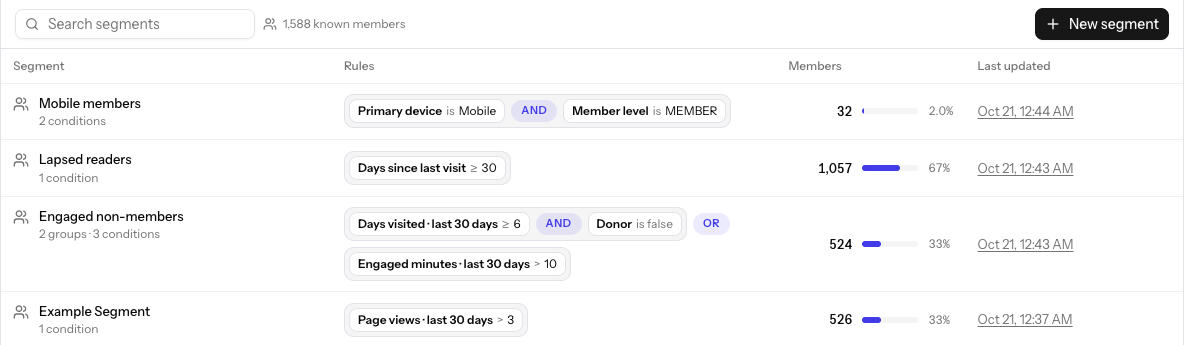
Above the list, Allegro shows how many known members your organization has — the total every segment's share is measured against. Use the search box to find a segment by name, and the tabs above the list to show All segments or only rule-based or programmatic ones.
| Column | Description |
|---|---|
| Segment | The segment's name and, for a rule-based segment, how many groups and conditions it has. Click the name to open it. |
| Rules | For a rule-based segment, a compact summary of the conditions: conditions in a group are joined by AND or OR, and a pill between groups shows how the groups combine. A programmatic segment shows Programmatic here. |
| Members | How many members are in the segment now, and their share of all known members. |
| Last updated | When the segment's rules or name were last saved. |
Each row has a menu with these actions:
| Action | What it does |
|---|---|
| Edit | Opens the segment editor. |
| Duplicate | Saves a copy named "… (copy)" with the same rules and opens it, so you can build a variation. |
| Export CSV | Exports the segment's members. See Exporting a segment. |
| Delete | Permanently deletes the segment. See Deleting a segment for when this is blocked. |
If Allegro can't reach the analytics engine to count a segment, the row shows Count unavailable rather than 0. A 0 always means no members match.
Building a segment
Click New segment to open the segment editor. Click the title at the top left to name the segment; until you do, it's called Untitled segment.
Under How do people join?, choose the segment's type:
- Rule-based — anyone who matches your conditions, kept up to date automatically. The rest of this section covers rule-based segments.
- Programmatic — you add and remove members yourself. See Programmatic segments.
You can only choose the type while creating the segment; it's fixed once you save.
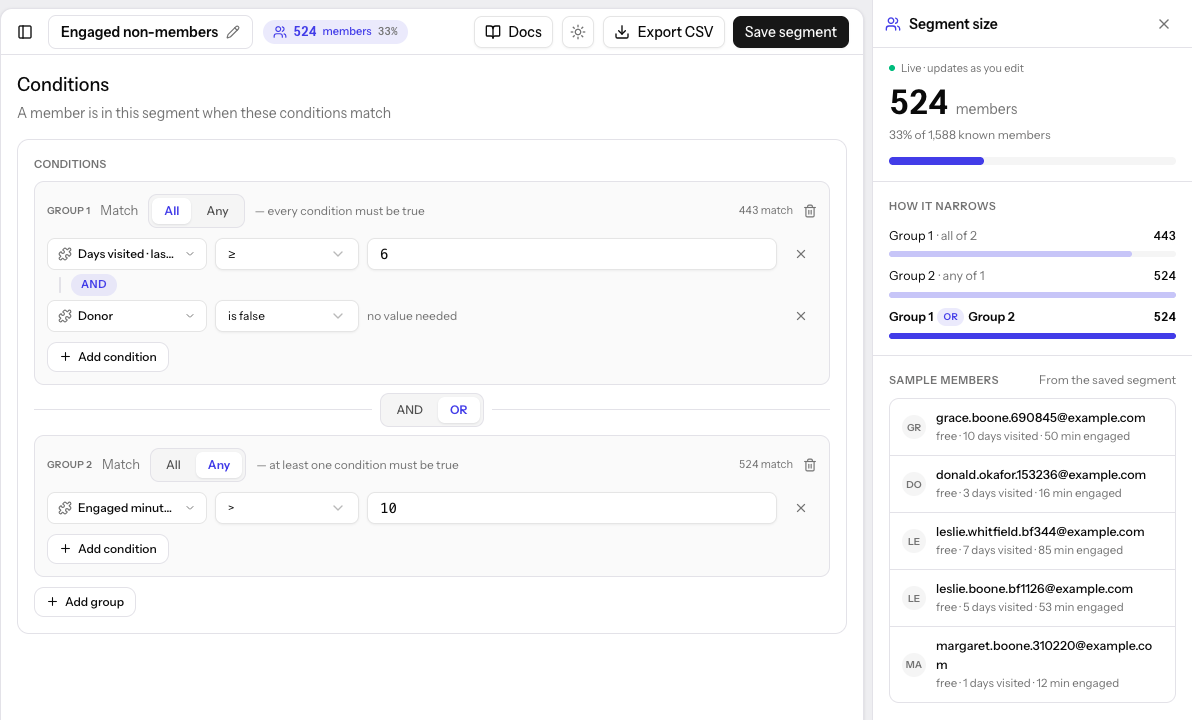
A member is in the segment when its conditions match. Conditions work the same way they do in an interaction's journeys:
- Groups. Each group has one or more conditions. Set the group's Match to All (every condition must be true) or Any (at least one must be true).
- Combining groups. Between groups, choose AND or OR. AND binds
tighter than OR:
A AND B OR Cmeans "(A and B) or C". - Adding conditions. Click Add condition in a group, or Add group for a new group. Each condition is an attribute, an operator, and (for most operators) a value.
Click Save segment when you're done. A segment with an unfinished condition can't be saved until you complete or remove that condition.
Choosing a field
Click Select attribute in a condition to open the field picker. Fields are grouped by source; type to search across all of them. The bottom of the picker describes the highlighted field and the kind of value it takes.
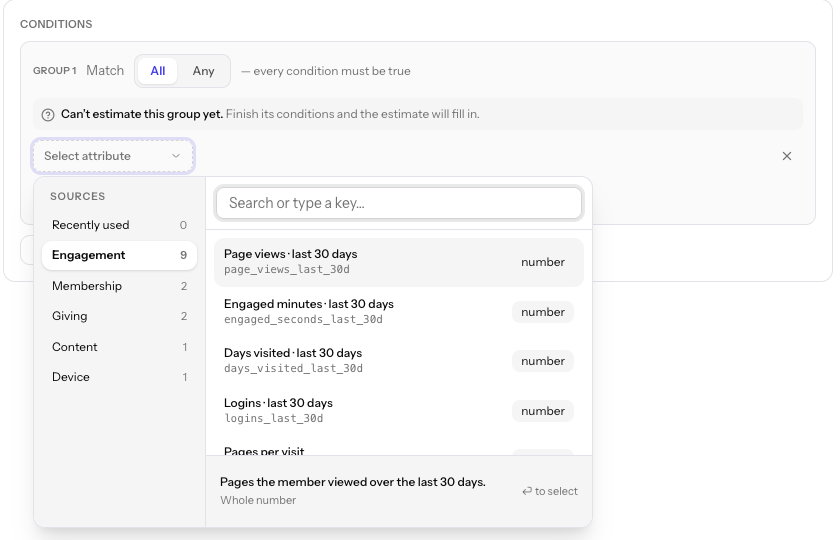
| Source | Fields |
|---|---|
| Engagement | Page views, Engaged minutes, Days visited, and Logins for the last 30 days · Pages per visit · Days since last visit · Lifetime page views, days visited, and logins · Signed up, First seen, and Last seen dates · Top content section · Primary device |
| Membership | Sign-up gate |
| Entitlements | Entitlement (has or does not have an active entitlement to a product) |
| Purchases | Purchase (has or has not purchased a product or plan), Number of purchases, Total spent, Last purchase |
| User attributes | One field for each user attribute you have defined, except file and color attributes |
| Segments | Segment (is in or is not in a programmatic segment) |
Which fields you see depends on your organization. For example, a user attribute only appears after you define it. Fields that describe a single page view, such as the current page, device, time, or session, aren't offered; see Segments vs cohorts.
The operators depend on the kind of field:
| Field kind | Operators | Value |
|---|---|---|
| Text | is, is not, is one of, is not one of, contains, does not contain | Text, with suggestions drawn from values your members actually have |
| Number | =, ≠, >, ≥, <, ≤, between | A number, or two for between |
| Date | within last, more than … ago, before, after, between | A period, or a date |
| Yes / no | is true, is false | None |
Segments offer only the operators Allegro can compute for the whole member list. If an operator you use in an interaction isn't listed for a field, it isn't available in a segment.
A member with no value for a field matches none of that field's conditions, including is not and is not one of. For example, Member level is not MEMBER leaves out members who have no member level at all.
Engaged minutes · last 30 days is entered and shown in minutes.
Purchases and entitlements
Purchase takes one or more products or plans. A member matches has purchased when they have a completed purchase of any listed product or plan, including plans that have no product. Number of purchases and Total spent add up all of the member's completed purchases across every product. Last purchase is the date of the most recent one. Members with no completed purchase have a count and total of 0, and no last purchase date.
Total spent is a single number in your main currency. If you charge in several currencies without a converted amount, the total mixes them.
Segment size
The Segment size panel on the right updates as you edit, so you can see the effect of each change before you save:
- Members — how many members match the conditions as they stand now, and their share of all known members. When you edit a saved segment, the panel also shows how far the count has moved from the saved one ("120 vs saved").
- How it narrows — the count for each group on its own, then for the groups combined. Each group card also shows its own count ("443 match").
- Sample members — a few members from the saved segment, with a short summary of their profile. This list doesn't change until you save.
The same count appears in the pill next to the segment name; click it to open the panel again if you've closed it.
A group with an unfinished condition says Can't estimate this group yet and is left out of the count until you finish it. If the count can't be calculated right now, the panel keeps the last numbers it had and says so.
Counts in the panel are previews. Your changes don't affect anything — exports, interactions, cohorts, or meters — until you click Save segment.
Undoing changes
Use the undo and redo buttons in the header to step through your edits. While you have unsaved changes, the title shows Unsaved changes · Reset; click Reset to go back to the segment's last saved rules.
Programmatic segments
A programmatic segment has no rules. Its membership is whoever you've added, and members stay until they're removed or their membership expires. This suits groups you maintain by hand or feed from elsewhere — a trial cohort, a list uploaded from another system, or visitors an interaction adds as they qualify.
How long people stay
Under How long do people stay?, set the default membership length for the segment:
- Until they're removed — members never expire on their own.
- For a set time — members leave automatically after a number of minutes, hours, or days (30 days by default). The editor shows an example of when someone added today would leave.
This is the default for anyone added without their own length; when you add a member you can override it for that member.
Adding and removing members
A saved programmatic segment has a Members panel. To add someone, enter their email and, optionally, a membership length for that member, then add them. Adding the same member again updates their membership rather than duplicating them, and the later expiry wins.
The members table lists everyone in the segment:
| Column | What it shows |
|---|---|
| Member | The member's email and name, or Deleted member if the account is gone. |
| Added by | Who added them — Staff, an API key, an Interaction (with the interaction's name), or System. |
| Added | When they were added. |
| Expires | When their membership ends, or Never. |
Use Remove on a row to take a member out. The size pill next to the segment name shows the live member count.
Besides the dashboard, you can manage membership through the API, an AI assistant over MCP, or a Segment action in an interaction. Every add, removal, and expiry is recorded in the Activity Log.
A member's segments
A member's profile has a Segments tab with two lists:
- Added directly — the programmatic segments they belong to. Admins and members can add the member to a programmatic segment here (with an optional custom expiry) or remove them. A membership ending within a day is flagged as expiring soon.
- Matched by rules — the rule-based segments the member currently matches, read-only, each linking to its rules.
Segments vs cohorts
Segments and cohorts both group people for targeting, but they work differently.
| Segment | Cohort | |
|---|---|---|
| What it is | A saved list of known members | A reusable set of live rules |
| When it's evaluated | Rebuilt every few minutes for all members | On every page view |
| Can you count, sample, and export it? | Yes | No |
| Use in analytics | Yes | No |
| Page, device, time, and session conditions | No | Yes |
| Anonymous visitors | No, known members only | Yes |
Use a segment when you want a list you can size, export, or report on. Use a cohort when the rule depends on the moment, such as the page someone is on, their device, the time of day, or their session.
Segments rebuild every few minutes. Conditions that depend on the passing of time, such as entitlement expiry, Last purchase, and Days since last visit, refresh at least daily.
The segment editor notes that current page, device, time, and session conditions are journey-only. Use a cohort for those.
What works where
| Concept | Where it comes from | Journeys | Segments |
|---|---|---|---|
| Entitlements | Your products | Yes | Yes |
| Purchases | Completed purchases of products and plans | Yes | Yes |
| User attributes | User attributes saved on each member | Yes | Yes |
| Programmatic segments | Membership set by your own systems | Yes | Yes |
| Engagement and behavior | Reading and visit history, including dates and engaged minutes | Yes | Yes |
| Member level, total donations | Package-provided user attributes, for publishers that use them | Yes | Yes |
| External profile fields | Synced CRM or email data | Yes | Yes, once you sync them into a user attribute |
| Rule-based segments | Other segments you built from rules | Yes | No |
| Cohorts, A/B tests, meters | Evaluated live for each request | Yes | No |
| Current page, device, time, session | Describe a single page view | Yes | No |
Segments in use
Interactions and cohorts can target a segment with the Segment condition, and a meter can let members of chosen segments bypass it.
When you open a segment that something uses, the editor notes which interactions, cohorts, and meters use it, with links to each. You can still edit its rules; the change applies to everything that uses it as soon as you save.
Exporting a segment
Click Export CSV in the editor header, or choose Export CSV from a segment's row menu.
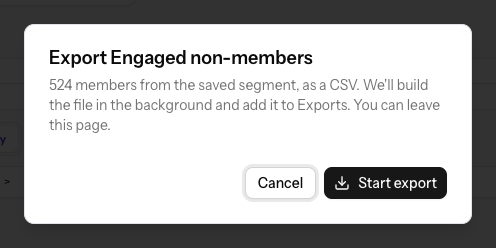
The dialog shows how many members the saved segment has. Click Start export to build the file in the background; you can leave the page. Allegro emails you a link when the file is ready, and it appears on the Exports page as Segment members: segment name.
An export always uses the segment as last saved. If you have unsaved changes, the dialog warns you that they aren't included — save first to export them. A new segment can't be exported until it has been saved.
The CSV has one row per member, with their email, sign-up date, membership and giving details, engagement totals, and first and last seen dates. See Segment member columns for the full list. Engaged time in the CSV is in seconds.
Deleting a segment
Choose Delete from a segment's row menu and confirm. Deleting is permanent.
Allegro won't delete a segment that's still in use. If any interaction (live, draft, or archived), active cohort, or meter references the segment, the dialog says This segment can't be deleted and how many of each use it. Remove the segment from them, then delete it.
Permissions
| Action | Viewer | Member | Admin |
|---|---|---|---|
| View segments, counts, and sample members | ✅ | ✅ | ✅ |
| Export a segment | ✅ | ✅ | ✅ |
| Create, edit, duplicate, and delete segments | ❌ | ✅ | ✅ |
| Add or remove programmatic members | ❌ | ✅ | ✅ |
Viewers can open any segment, but the editor is read-only for them.