Building Emails
Allegro has one editor for every email it sends: the built-in email templates, such as sign-in codes, and the workflow emails your workflows send. Each email is written in one of two modes:
| Mode | Who it's for | What you edit |
|---|---|---|
| Builder | Anyone. No HTML knowledge needed. | Blocks such as text, headings, buttons, images, and dividers. Your email theme styles them. |
| HTML | People who want full control of the markup. | The complete HTML document. The email theme applies only if you turn it on. |
New emails start in the builder. The mode an email is saved in is the mode it opens in next time.
The builder, the email theme, and the Theme button are turned on per organization. If your editor shows only an HTML tab and no Builder menu, ask your Allegro contact to turn on the email builder for your organization.
The editor
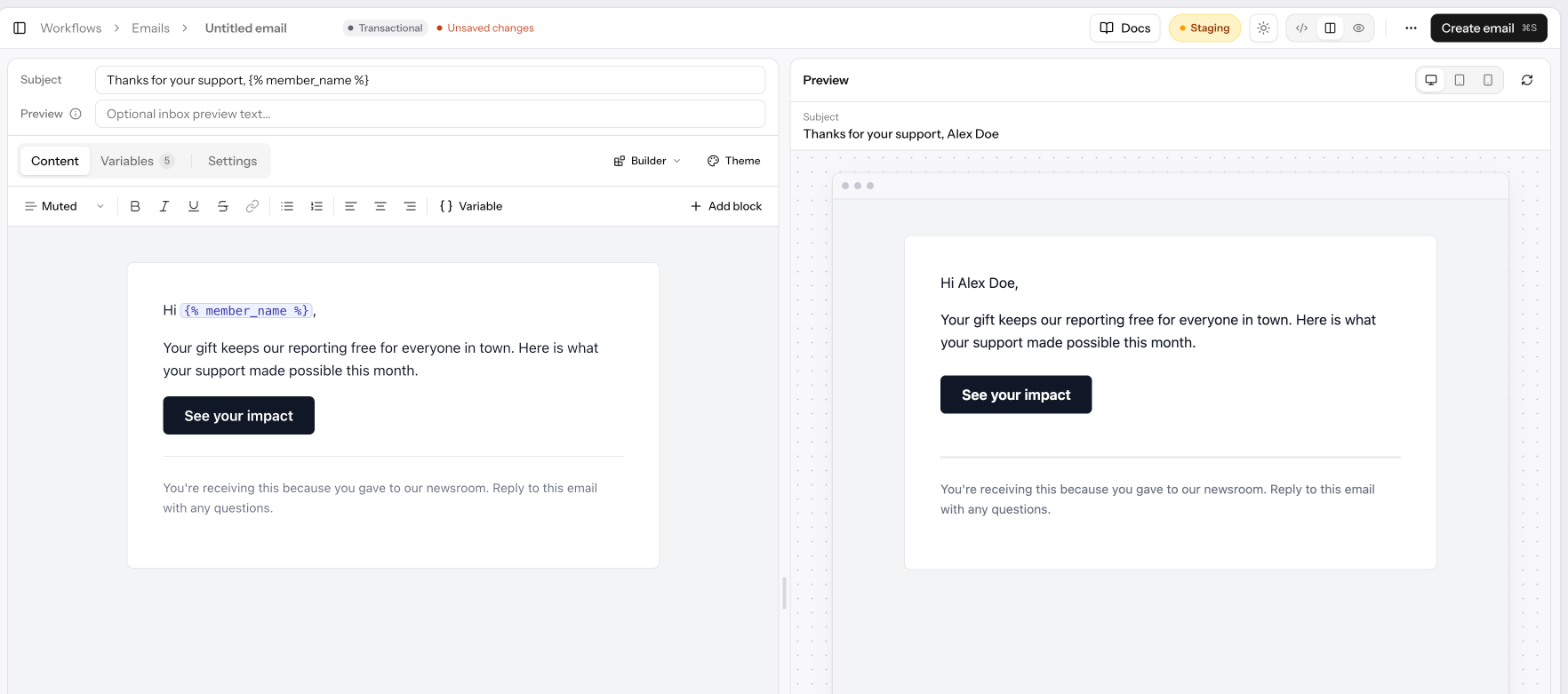
Every email editor has the same layout:
- Subject and, for workflow emails, Preview text at the top.
- Tabs for Content, Variables, and any extra settings (workflow emails have a Settings tab). In HTML mode with the theme on, a CSS tab appears too.
- The mode menu (Builder or HTML) and the Theme button to the right of the tabs.
- A live Preview beside the editor. Switch it between Desktop, Tablet, and Mobile, or click Reload preview to render it again.
The preview is rendered by Allegro the same way a real send is, with example values in place of each variable. It updates a moment after you stop typing. The buttons in the page header switch between the editor only, the editor and preview side by side, and the preview only.
Building with blocks
The builder shows the email the way it will look: your content sits inside the themed email card, in your fonts and colors.
Adding blocks
There are three ways to add a block:
- Type
/on an empty line to open the block menu, then keep typing to filter it. Press Enter or Tab to insert, Esc to close. - Click + Add block at the right end of the toolbar.
- Hover beside a line and click the + that appears.
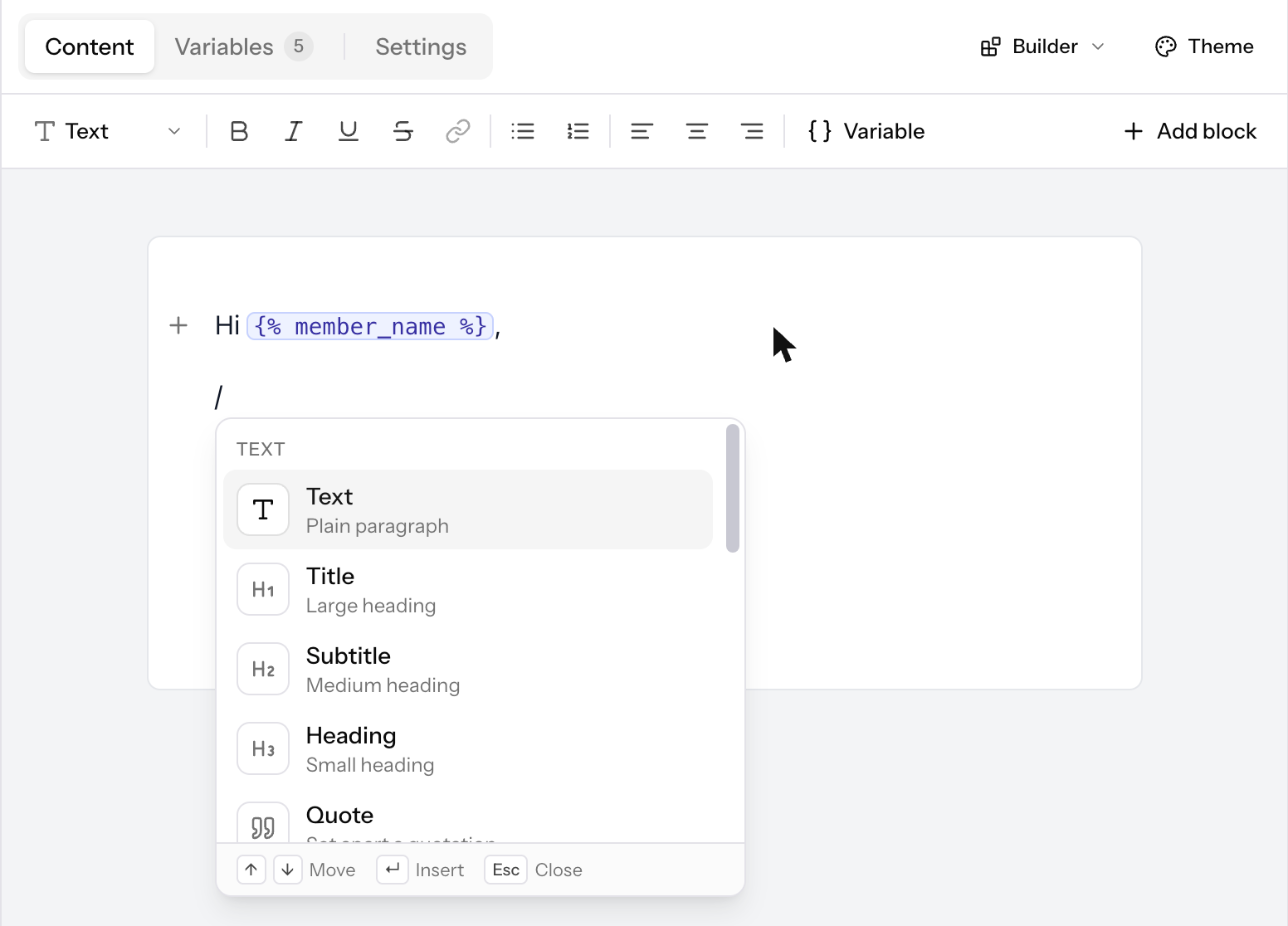
| Block | What it adds |
|---|---|
| Text | A plain paragraph. |
| Title | A large heading. |
| Subtitle | A medium heading. |
| Heading | A small heading. |
| Quote | A set-apart quotation. |
| Muted text | Smaller, lighter text, for footnotes and fine print. |
| Code display | Large, spaced-out text, made for one-time sign-in codes. |
| Bullet list | A list with bullets. |
| Numbered list | A list with numbers. |
| Button | A link styled as a button. |
| Image | An image from a web address. |
| Divider | A horizontal line. |
| Variable | A {% variable %} from this email, such as the member's name. |
Formatting text
Select text to format it with the toolbar above the email:
| Control | What it does |
|---|---|
| Block type | Switches the current block between Text, Title, Subtitle, Heading, Muted, and Code. |
| Bold, Italic, Underline, Strikethrough | Formats the selected text. ⌘B, ⌘I, ⌘U, and ⌘⇧S (Ctrl on Windows). |
| Link | Links the selected text. Click it again on a link to change or remove it. |
| Bulleted list, Numbered list | Turns the block into a list. ⌘⇧8 and ⌘⇧7. |
| Align left, center, right | Aligns the block. |
| Variable | Inserts a variable at the cursor. |
Press Alt+F10 to move from the email to the toolbar with the keyboard, and Esc to go back.
Buttons
A new button reads "Button label". Click into it to type your own label. While the button is selected, a small bar above it lets you:
- Click Add link to set the button's address, then Apply.
- Align the button left, center, or right.
- Remove the button.
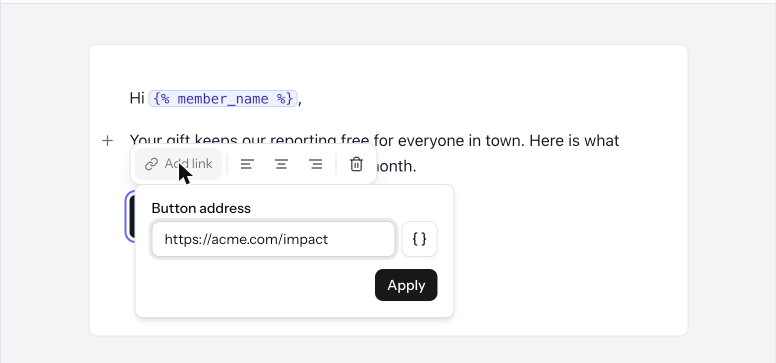
The button's colors, corner radius, and padding come from the email theme, so every button in every email matches.
Images
Choose Image from the block menu and fill in:
| Field | What it's for |
|---|---|
| Image address | The image's web address. Images are linked, not uploaded, so host it somewhere public. |
| Alternative text | A description for people using screen readers, and for inboxes that block images. |
| Decorative image (no description) | Check this instead of writing alternative text when the image adds no meaning. |
| Link (optional) | Where the image goes when clicked. |
Select an image to edit these, change its alignment, or remove it.
Allowed addresses
Links, buttons, and images accept addresses that start with https://,
http://, mailto:, or tel:, or that start with a variable such as
{% unsubscribe_url %}. Every address field has a { } button for inserting
a variable.
If you paste content with any other kind of address (for example a javascript:
link), the builder drops the address and keeps the text. Allegro also checks the
whole email when you save and won't save one with an address it doesn't allow.
Variables
Type {% anywhere in the email to see the variables this email can use, or
click Variable in the toolbar and search. You can also choose a variable on
the Variables tab to insert it where the cursor was.
Variables appear as highlighted chips in the builder. A variable the email doesn't know about is marked Unknown variable, and it's sent exactly as written, braces and all.
See Email Templates and Workflow Emails for the variables each kind of email has.
Theme and CSS for one email
The builder always applies your email theme. To change the theme for one email only, click Theme. See Overriding the theme for one email.
Writing HTML
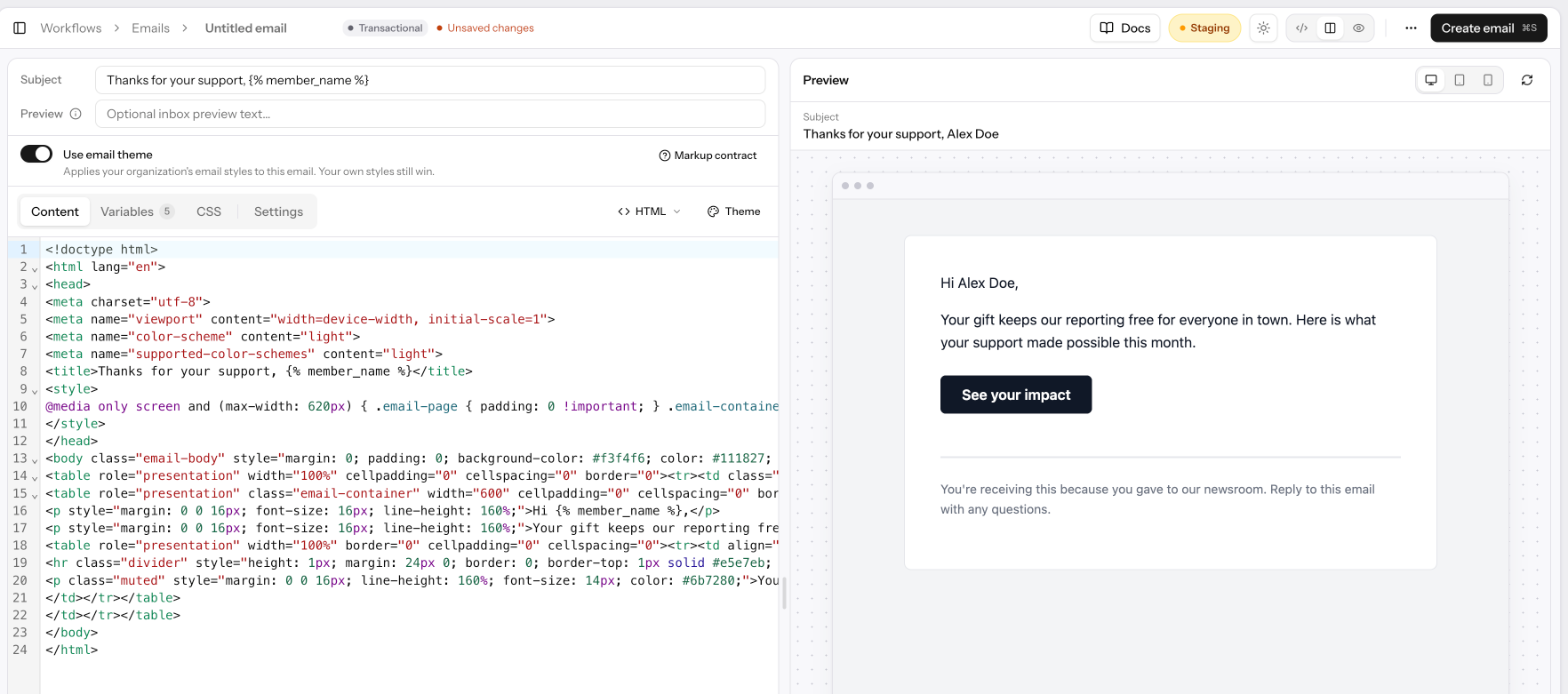
In HTML mode, the Content tab is a code editor for the complete HTML
document. Type {% to see variable suggestions. The status bar shows the
cursor's line and column.
Using the email theme in HTML
Turn on Use email theme above the tabs to apply your organization's email
styles to the HTML. Your own styles still win: any inline style you write
takes precedence over the theme. With the theme on:
- A CSS tab appears for CSS that applies to this email only, after your organization's CSS.
- The Theme button lets you override theme values for this email.
The theme styles only a fixed set of selectors. Click Markup contract to see them, or use this table:
| Selector | What it is |
|---|---|
.email-body | The page behind the email. Put it on <body>. |
.email-container | The email card. |
.email-content | The card's inner cell, used when the footer has its own background. |
.email-header, .email-logo | The header and its logo. |
.email-footer | The footer. |
.button | A link styled as a button. |
.divider | A divider line. |
h1, h2, h3, p, ul, ol, li, blockquote, a, img, hr | Standard elements. |
For example, this link picks up the theme's button colors, radius, and padding:
<a class="button" href="{% unsubscribe_url %}">Manage your preferences</a>
Below the editor, Allegro warns you, without blocking the save, when the HTML
has no doctype (some email clients then render it in quirks mode) or no <body>
tag (the theme's page background and text styles need one).
Switching modes
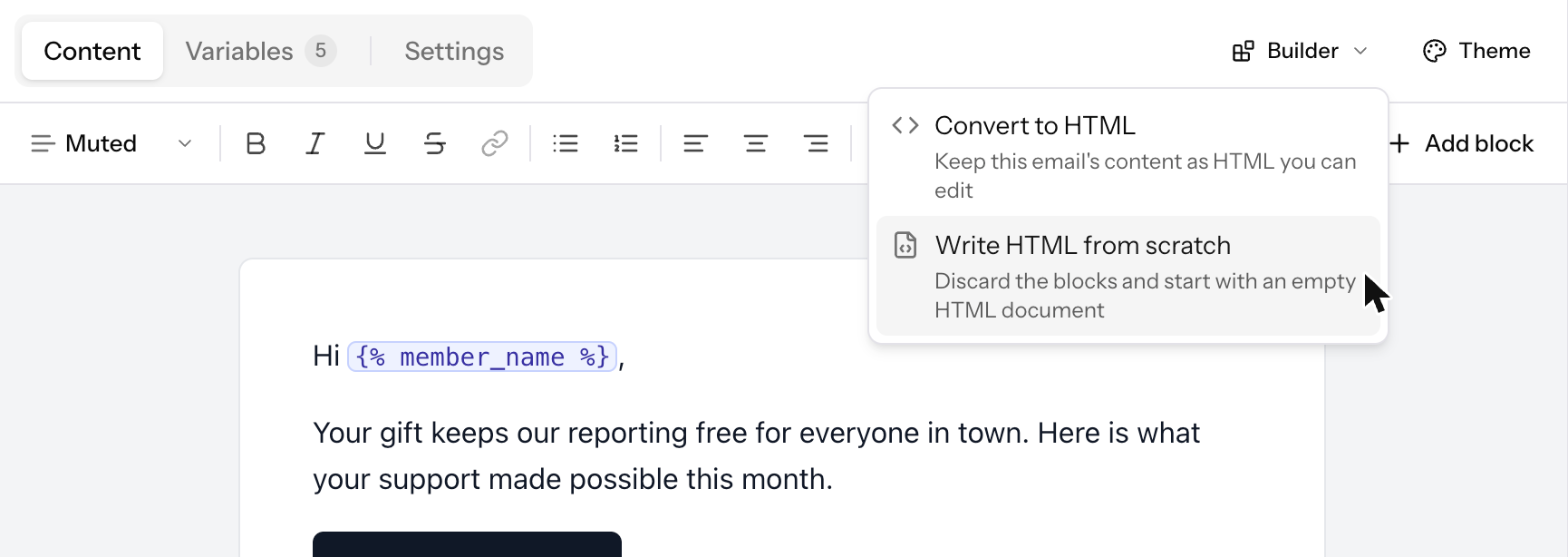
Open the mode menu (Builder or HTML) beside the tabs to switch. The same actions are in the ⋯ menu in the page header.
| Action | From | What happens |
|---|---|---|
| Convert to HTML | Builder | Allegro renders the email, theme included, into HTML you can edit. Use email theme is turned off, because the theme's styles are now written into the HTML. |
| Write HTML from scratch | Builder | Discards the blocks and starts a basic HTML document with the theme on. |
| Start over in the builder | HTML | Discards the HTML and starts a blank email in the builder. |
HTML can't be turned back into blocks. Once an email is in HTML mode, the only way back to the builder is Start over in the builder, which discards the HTML. Each switch asks you to confirm, and nothing changes for recipients until you save.
Saving and history
Click Save (⌘S, or Ctrl+S on Windows) to save. Workflow emails show Create email until their first save.
Allegro checks a builder email before saving it. If something isn't allowed,
such as an address with an unsupported scheme, a message under the email says
what to remove. A marketing workflow email must still include
{% unsubscribe_url %}, in either mode.
Each saved version records the email's mode, content, and theme settings. Restoring a revision from History brings all of them back, including the mode. Test emails always use the last saved version.
Related Links
- Email Theme — the colors, fonts, and layout every email shares
- Email Templates — the built-in emails, such as sign-in codes
- Workflow Emails — emails your workflows send